Every photographer hits the same wall. You push the ISO to save a shot in bad light, and the picture comes back grainy. The best noise reduction software cleans up that high-ISO mess while keeping the detail you actually shot for. This guide ranks eight photo denoisers for Windows. Some are heavy AI engines that want a gaming graphics card. One is a lightweight tool that runs on an old laptop with nothing special inside. We are talking about image noise here, not audio noise cancellation, so every pick is dedicated photo noise reduction software for Windows.
Disclosure: SoftOrbits makes Easy Photo Denoise. We ranked every tool below against the same yardstick, our own included, so you can compare before you download.
| Tool | Best for | License | Needs GPU? | RAW / JPEG |
|---|
| SoftOrbits Easy Photo Denoise | Old/low-end Windows PCs | One-time | No | RAW in, JPEG out |
| DxO PureRAW 6 | Best RAW quality | One-time | Yes (RTX 6GB+) | RAW only |
| Topaz Photo AI | All-in-one AI | Subscription | Yes | RAW + JPEG |
| ON1 NoNoise AI | Value AI denoiser | One-time | Yes (4GB VRAM) | RAW + JPEG |
| Lightroom AI Denoise | Existing subscribers | Subscription | Yes | RAW + JPEG |
| Luminar Neo | Creative editing | One-time or sub | Yes | RAW + JPEG |
| Neat Image | Profiled CPU denoise | One-time | No | RAW + JPEG |
| darktable / RawTherapee | Free and offline | Free | No | RAW + JPEG |
What causes photo noise (and what software can fix)
TL;DRPhoto noise has two parts. Luminance noise is the grainy texture in the brightness channel. Chroma noise is the colored speckle that ruins shadows and skies. High ISO makes both worse, and good software removes the speckle while protecting edges.
Digital noise is the random speckle that appears when your camera amplifies a weak signal. Shoot at ISO 6400 in a dim room and the sensor has to guess at the missing light. That guess lowers the signal-to-noise ratio and leaves grain behind. The grain comes in two flavors. One is luminance noise, the gritty film-like texture in the brightness channel. The other is chroma noise, the patchy color blotching that looks worst in deep shadows and flat skies. A denoiser has to smooth both without turning eyelashes and fabric into plastic. The cheap approach is a blur that softens everything. The good approach is edge-aware processing that can tell grain apart from the real detail. Softness is a different problem from grain, by the way, and a tool that fixes blurry shots works on sharpness rather than noise. Push a denoiser too hard and you trade one flaw for another. Over-smoothing leaves skin and skies looking waxy, which is a complaint you see again and again in real comparison threads.
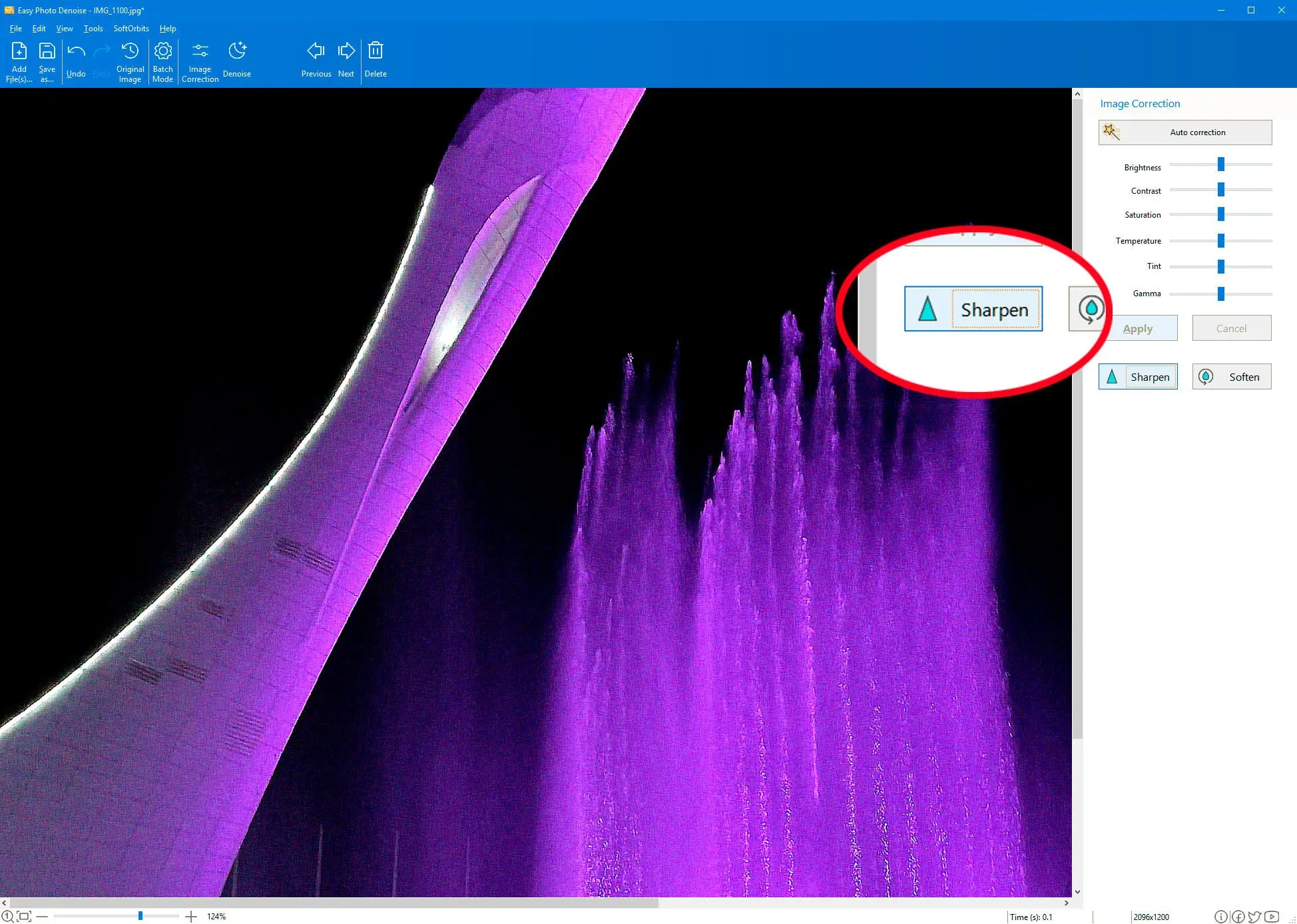
You may need to do sharpening for blurry result.
How we tested and ranked these denoisers
TL;DRWe judged each tool on five fronts. Quality at high ISO mattered most, followed by hardware needs and the licensing cost. After that came file support and the everyday workflow. No tool wins on all five, so your PC and budget decide the pick.
We did not chase a single "best" score, because the right denoiser depends on what you own and what you shoot. Five criteria carried the ranking:
- Noise quality. How cleanly it removes luminance and chroma noise at high ISO without smearing detail.
- Hardware needs. Whether it demands a dedicated GPU or runs happily on integrated graphics.
- License and cost. A one-time purchase versus a subscription, and what it adds up to over a few years.
- File support. RAW only or RAW plus JPEG. Standalone app or plugin.
- Workflow. Batch support, plain ease of use, and whether it runs offline.
Where we point to quality differences, we lean on hands-on community comparisons instead of marketing copy. A long side-by-side on the pixls.us photography forum and a detailed roundup at Fstoppers shaped several of the verdicts below.
The 8 best noise reduction tools, reviewed
1. SoftOrbits Easy Photo Denoise - Easy to Use, Best for low-end Windows PCs
This is our pick for the largest and quietest group of readers. They run an everyday Windows laptop with no gaming GPU, and they just want cleaner photos without a monthly bill.
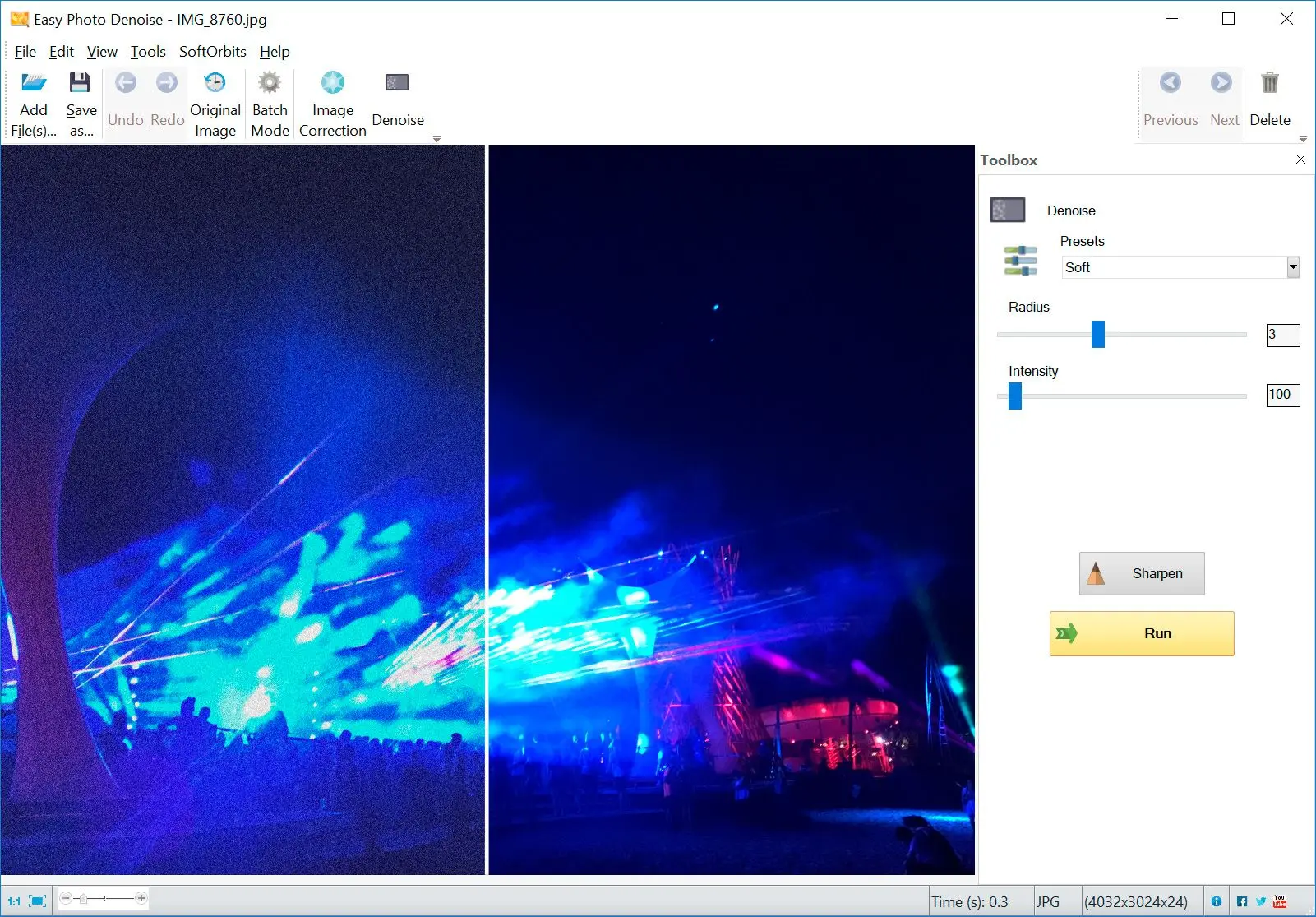
Easy Photo Denoise uses classic denoising math (Median, Bilateral, and Non-Local Means) rather than a heavy neural network. That choice is the whole point. It runs on the CPU, works offline, and never checks for VRAM. You add files or a folder, pick a preset from Light to Strong, sharpen afterward if you like, and process in batch. It reads RAW and writes JPEG. It is honest about what it is. This is a fast, buy-once cleaner, not a deep-learning detail rebuilder.
Pros:
Runs without a dedicated GPU, on integrated graphics and older laptops
One-time license with no subscription, ever
Batch folders driven by simple Light-to-Strong presets
Optional sharpen step after the denoise pass
Cons:
Classic algorithms cannot recover extreme high-ISO detail the way DxO or Topaz can
The Strong preset can soften fine texture if you overdo it
Windows only, and it exports to JPEG rather than a full RAW pipeline
Verdict: Choose Easy Photo Denoise if you want a buy-once cleaner that runs without a graphics card on Windows. Have a strong GPU and want the absolute best quality? The next two picks rank higher there.
2. DxO PureRAW 6 - Best pure RAW noise reduction quality
DxO PureRAW is the quality benchmark most reviewers reach for. Its DeepPRIME engine produced the cleanest RAW output in the Fstoppers testing, with fewer artifacts than its rivals. The catch is scope. It only processes RAW files, so JPEG shooters are out of luck, and it leans hard on a capable graphics card. The official store lists an NVIDIA RTX with at least 6 GB of VRAM as the minimum, and recommends more for speed. It sells as a one-time purchase, around $139.99 new on the
DxO store.
Pros:
Top-tier RAW denoise quality with clean, natural detail
Buy it once, with no subscription
Works as a standalone app and as a Lightroom plugin
Cons:
RAW files only, with no JPEG support
Wants a recent dedicated GPU with 6 GB or more of VRAM
Verdict: Choose DxO PureRAW 6 if you shoot RAW on a capable GPU and want the cleanest result going.
3. Topaz Photo AI - Best all-in-one AI
Topaz folds three jobs into one app. It denoises, sharpens, and upscales, which is why a lot of photographers keep it in the bag. The quality reputation is real, but two things have hurt it lately. First, Topaz
ended perpetual licenses in October 2025 and went subscription only, starting around $199 a year. Second, reviewers keep flagging quality quirks. The Fstoppers test noted a slow analysis phase and
"fake
" creeping into night-sky shots. On the pixls.us comparison, one user was "least impressed by Topaz" and found noise artifacts in the background.
Pros:
One workflow that denoises, sharpens, and enlarges
Strong AI quality on typical high-ISO shots
Opens both RAW and JPEG files
Cons:
Subscription only since October 2025, with no buy-once option
Needs a capable GPU to run at a usable speed
Reported artifacts in night-sky and fine-texture scenes
Verdict: Topaz Photo AI earns its keep when you want one app for cleanup and upscaling and do not mind paying yearly.
4. ON1 NoNoise AI - Best value AI denoiser with JPEG support
ON1 NoNoise AI is the value pick among the AI tools. It denoises RAW and JPEG alike, runs standalone or as a plugin, and still sells a one-time license instead of forcing a subscription. In the pixls.us thread, one tester rated ON1 the best of the bunch on a real-world photo, though "the difference isn't very significant" against the free tools. The recurring knock is blotchy artifacts in smooth gradients like skies, plus a 4 GB VRAM minimum listed on the
ON1 product page.
Pros:
Opens both RAW and JPEG, standalone or as a plugin
Buy-once license still on offer
Quick to process and good value among AI tools
Cons:
Blotchy artifacts can show up in skies and smooth gradients
Requires at least 4 GB of VRAM
Verdict: Choose ON1 NoNoise AI if you want AI cleanup for both RAW and JPEG without a subscription.
5. Adobe Lightroom AI Denoise - Best if you already subscribe
Already paying for Adobe's Photography Plan? Then Lightroom's AI Denoise is right there, with no extra purchase, working non-destructively inside your catalog. That convenience is the entire pitch. The downsides are speed and stagnation. The
SilentPeak Photo roundup measured 10 to 20 seconds per image. A commenter in the Fstoppers review claimed Adobe "hasn't updated their AI noise reduction algorithm since April 2023." There is no buy-once option either, and the entry plan runs about $9.99 a month for existing members, with new subscribers paying more.
Pros:
Bundled into the existing Photography Plan at no extra cost
Non-destructive, right inside the Lightroom catalog
Cons:
Slow, at roughly 10 to 20 seconds per image
Subscription only, with no buy-once license
Algorithm reportedly stale next to DxO
Verdict: Already subscribed? Lightroom AI Denoise is the obvious call, with no reason to leave Adobe just for noise.
6. Luminar Neo - Best for creative editing with denoise built in
Luminar Neo is a creative editor first and a denoiser second. Noise reduction is one tool among many here, so it suits photographers who want stylized edits and relighting alongside cleanup. It sells both a one-time desktop license and a subscription, with some capabilities offered as paid extension packs. As a dedicated denoiser it is fine rather than exceptional, so judge it on the whole package.
Pros:
A full creative editing suite, not only noise reduction
A one-time purchase option exists
Cons:
Noise reduction is a side feature, not the core focus
Some capabilities cost extra as paid packs
Verdict: Choose Luminar Neo if you want creative editing plus cleanup in one tool and care more about looks than specialist denoising.
7. Neat Image - Best traditional, non-AI CPU denoiser
Neat Image is the veteran of profiled denoising. Rather than guess with a neural network, it builds a noise profile for your exact camera and ISO, then strips that signature out. It is tuned for the CPU, runs standalone on Windows, and sells a one-time license. The tradeoff is automation. You get the most from it by feeding it a camera profile, which is more manual than a single-button AI pass. For people who distrust AI smoothing and want repeatable control, that extra step is a feature.
Pros:
Profiled, predictable cleanup with fine manual control
Tuned for the CPU, with no GPU dependency
Buy-once license, standalone on Windows
Cons:
More hands-on than the automatic AI tools
Best results need a proper camera noise profile
Verdict: Choose Neat Image if you want precise, profile-based control and prefer a traditional approach over AI.
8. darktable and RawTherapee - Best free and open-source
This free, open-source pair covers anyone on a zero budget. Both run on the CPU and cost nothing at all. RawTherapee can punch well above its price. In a direct test on Topaz's own sample images, the photographer behind the
Marc R Photo blog found the RawTherapee output "sharper" and "much better," and concluded that skill with the tool matters more than the price tag. The cost is the learning curve, and at very high ISO the community agrees the AI tools still pull ahead. darktable's profiled denoise can over-smooth too, leaving subjects "waxy" if you lean on it.
Pros:
Costs nothing, open-source code, runs fully offline
Works on the CPU with no GPU required
Genuinely capable in skilled hands
Cons:
Steep learning curve and no automatic mode
Quality trails the AI tools at very high ISO
Verdict: Reach for darktable or RawTherapee when the budget is zero and you have the patience to learn the workflow.
 Easy Photo Denoise