Features
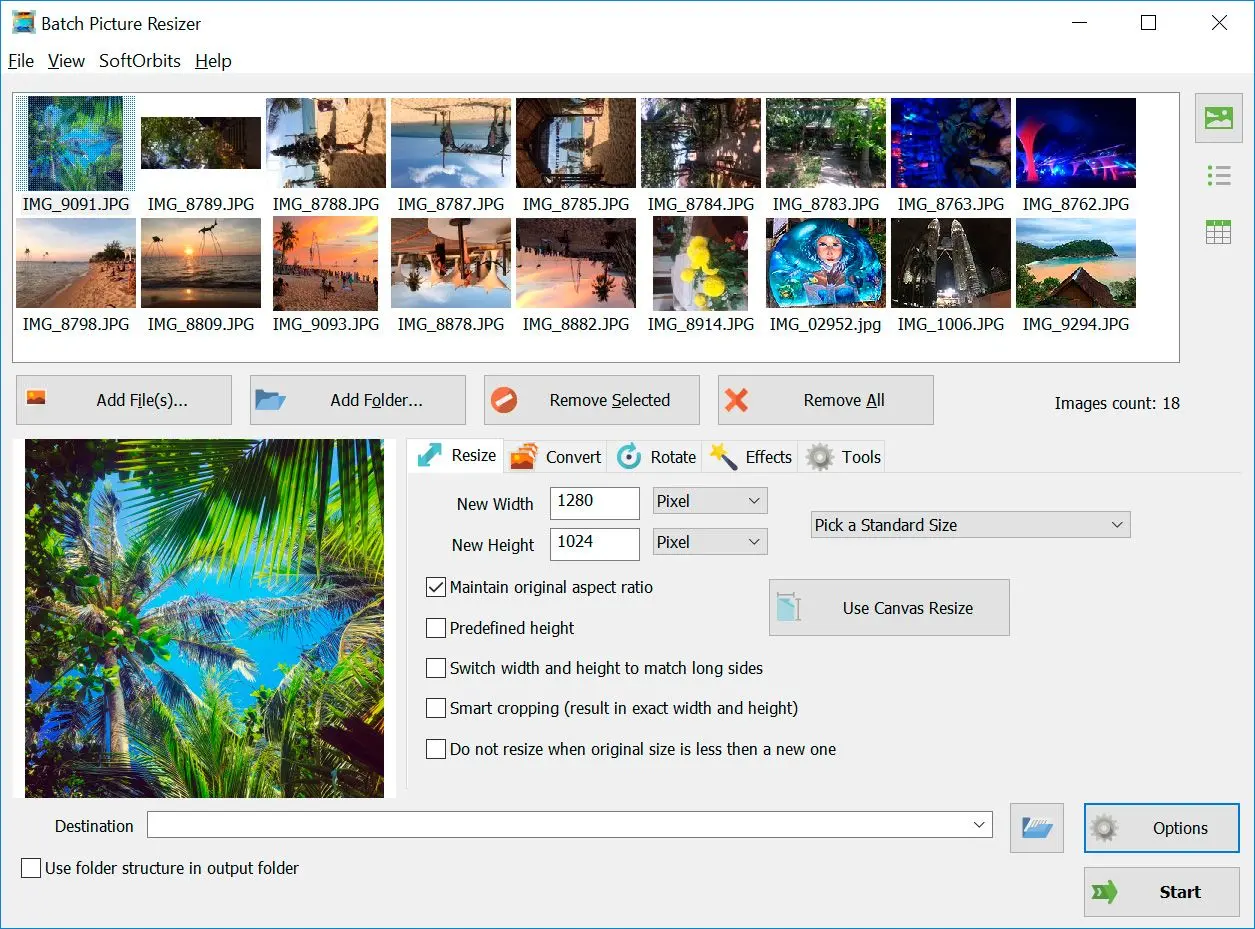
Input and batch workflow
- Nikon RAW (.NEF) support — load NEF files directly (as in the thumbnail list with DSC_*.NEF).
- Add files or whole folders — Add File(s)… and Add Folder… for large shoots.
- Batch queue — see all images in a thumbnail grid, with Remove Selected / Remove All and an images count.
- List / detail views — icons to switch how the file list is shown.
Conversion (Convert tab)
- NEF → JPG and more — output formats include JPG, PNG, GIF, BMP, PCX, TIF, TGA, or keep original format.
- JPEG quality — control compression vs. file size for JPG exports.
- DPI — set output DPI for print/web use.
Resize (can run with conversion)
- Width / height in pixels or percent, plus standard size presets (“Pick a Standard Size”).
- Keep aspect ratio — optional maintain original aspect ratio.
- Smart options — e.g. match long sides for mixed portrait/landscape, smart cropping for exact dimensions, skip upscaling when the original is already smaller than the target.
- Canvas size — separate dialog to change canvas dimensions and background color (e.g. black bars).
Other processing tabs
- Rotate — orientation fixes (including typical EXIF-style workflows implied by the tab).
- Effects — filters / adjustments in batch.
- Tools — extra utilities from the Tools tab.
- Preview and output
- Live preview — large preview of the selected shot before you run the job.
- Destination folder — choose where converted files go (e.g. D:\Results).
- Preserve folder structure — Use folder structure in output folder when processing nested folders.
Why would you need to convert NEF to JPG?
- JPEG files are smaller in size than NEF files, so they take up less storage space on your computer or device
- JPEG files are easier to share online
- Most photo editing programs can't open NEF files, but they can open JPEGs
- JPEGs are the most common file extension for photos, so you'll likely have no problem finding software or tools that can convert them
- Some devices, like smartphones and tablets, don't support the NEF images
- If you want to print your photos, most printers work best with JPEGs
NEF vs JPG: what you keep and what you lose
A NEF file is the raw data straight off your Nikon sensor, recorded at 12-bit or 14-bit per channel. That is 4,096 to 16,384 brightness levels in every color, where an 8-bit JPG keeps 256. Your camera has not locked in white balance, sharpening, or noise reduction yet, so the NEF still carries all of it as data you can change.
Converting to JPG applies those settings, then drops the spare data to make a smaller file that opens anywhere. For viewing, printing, and normal sharing, a high-quality JPG from a NEF looks great. The gap only shows if you edit that JPG hard later. Push the shadows or pull back a blown sky in 8-bit and you can see banding and color shifts that the original NEF would have absorbed.
- Keep the NEF while a high-contrast shot still needs work, like a sunset, a backlit portrait, or harsh studio light.
- Convert to JPG once the edit is final, or when you just need files that upload fast and open on any phone or browser.
- Keep one copy of the original NEF. JPG export runs one way, and you cannot rebuild raw sensor data from a finished JPG.
Get the best JPG from your NEF files
A few choices keep your exported photos clean.
- Set JPEG quality to 90 or higher so compression stays invisible at normal viewing sizes.
- Export in the sRGB color space for anything going online, since that is what browsers and phones expect.
- Resize on the way out when files are for the web, so a 45-megapixel Nikon frame does not ship as a 20 MB JPG.
Batch Picture Resizer does all three in one pass, and the same job converts other formats too, from
TIFF scans to
WebP images.
NEF to JPG Converter Software: Desktop vs Online
Browser-based converters are handy for one or two files. They start to hurt once you have a full memory card or a slow connection. A desktop NEF to JPG converter keeps every file on your own PC and runs at the speed of your processor, not your internet.
- Online tools upload your files to a remote server. A desktop converter keeps every NEF on your PC and works offline.
- Web converters often cap the file count or size. The desktop app runs whole folders and memory cards in one pass.
- Online speed is tied to your upload. Desktop speed is tied to your CPU, with no upload wait.
If you also shoot Canon, the same app converts
CR2 files too.
 Batch Picture Resizer