 Batch Picture Resizer
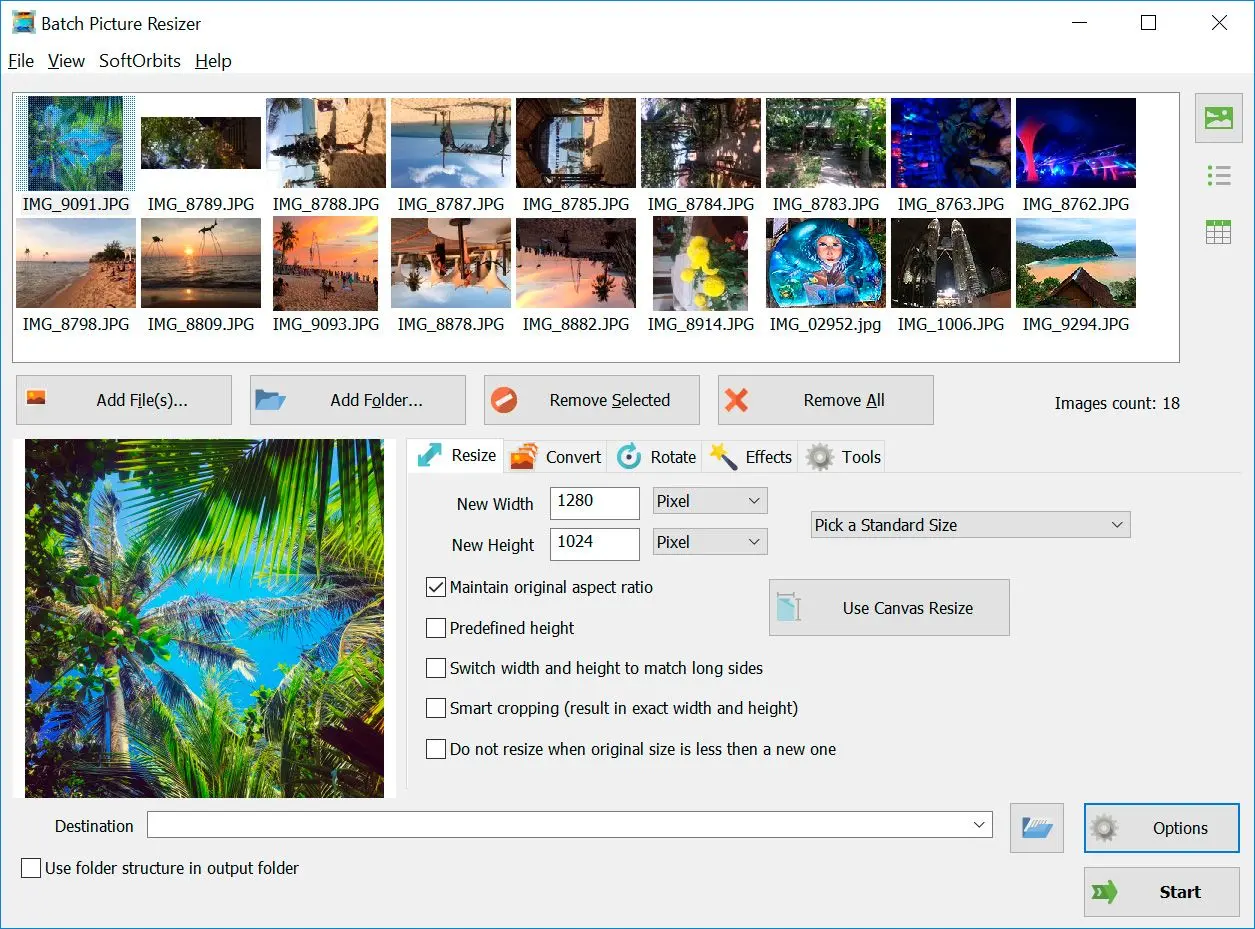
Batch Image Resizer is an easy, user-friendly tool that helps you resize multiple photos, convert, flip, mirror, or rotate them in batch mode.
Why Windows 11 has no built-in bulk image resizer
Windows 11 has no native right-click "resize all" command. The Send to Mail trick that worked in Windows 10 is gone, so most people install PowerToys or a dedicated batch resizer.
If you upgraded and could not find the old bulk-resize option, you are not imagining it. In a Microsoft Learn Answers thread a user reported the "SHARE EMAIL method which worked really well in Win 10 no longer available," and an Independent Advisor on the thread confirmed there is no built-in right-click resize for multiple images in standard Windows 11 File Explorer.
The two common fixes are Microsoft PowerToys Image Resizer, a free Explorer add-on you install yourself, or standalone image resizer software like Batch Picture Resizer. PowerToys adds a right-click entry with Small, Medium and Large presets, plus a Custom size. A standalone tool goes further: format conversion and JPEG quality control, plus renaming and watermarks that PowerToys does not include.
Resize JPG to exact pixel dimensions without distortion
Set only one dimension and let the software calculate the other, or use a fit mode, so photos keep their shape. Entering both width and height by hand is what stretches images.
Online stores expect exact squares, such as 800 x 800 or 1000 x 1000 pixels for product photos. The mistake that ruins whole batch is typing both width and height for images that are not all the same shape. Microsoft's PowerToys docs on Fill, Fit and Stretch spell out what each mode does. Fill crops to the size. Fit keeps the whole image inside it. Stretch is the one that distorts.
In Batch Picture Resizer, turn on Maintain the original aspect ratio and enter one side, or use Smart cropping when every output must be the same square. Mixed portrait and landscape shots are handled by orientation detection, so vertical photo does not come out squashed.
How to resize JPG without losing quality
Quality loss comes from poor scaling and repeated JPEG saves, not from resizing itself. Work from the original file and export at JPEG quality 85 to 95.
The most common complaint is blurry output. One Microsoft Tech Community member wrote that "when I resize images using basic image editing software or online tools, the quality often suffers with blurry or pixelated images." Two things cause this. The first is weak interpolation. Paint gives you, in the same community discussion, "weird pixelation" with no algorithm choice at all. A batch resizer uses Lanczos or bicubic scaling that holds edges far better.
Second, JPEG is lossy, so every save throws away data. A HackRead breakdown of why JPEG quality drops puts it plainly: the format discards a little image data every time you modify the file. Keep a master copy, resize copies, and avoid to re-save the same JPG over and over. Set the quality slider to 90 on the final export and the difference on screen is invisible.
Batch Image Resizer is an easy, user-friendly tool that helps you resize multiple photos, convert, flip, mirror, or rotate them in batch mode.
Resize or compress? Pixel dimensions vs file size in KB
Resizing changes pixel dimensions; compressing changes the file weight in KB. They are different jobs, and many uploads need both.
People mix these up constantly, and a plain explainer of resizing versus compression shows why it matters: a 4000 px photo saved at low quality is still 4000 px wide, just blurrier. To hit a portal limit such as "under 200 KB," you usually resize the pixels at first, then tune JPEG quality for weight.
Batch Picture Resizer can target a file size directly. In the size fields, choose the KB unit and pick a preset such as 100, 200, or 500 KB, or 1, 2, or 5 MB. The program tries JPEG quality levels in memory and writes the file once, as close to your target as possible without going over. That is handy for forms, marketplaces, and email caps where the limit is the file weight, not the pixels.
Batch resize hundreds of photos for online stores
Add a whole folder, set one rule, and process every photo in a single run. Batch mode is the reason to use desktop software over a browser tab.
Doing photos one at a time is the pain that sends people looking for a tool. One Quora user with more than 90 JPGs summed it up: "doing one at a time is too labor-intensive."
With Batch Picture Resizer you add the whole folder once, set width and height and the quality, and job runs on every file. It keeps the folder structure for nested directories. It can rename on export with a prefix or numbering, and it uses every CPU core so large libraries finish quickly. For a marketplace set, point it at the folder of raw shots, set 1000 x 1000 with aspect ratio locked, and you get a consistent set ready to upload. The full Batch Picture Resizer workflow lives on the Batch Picture Resizer page.
Offline desktop software vs online image resizers
Desktop software keeps files on your PC. There is no upload step and no website size cap to fight. Online tools fit a quick one-off, not a folder of client photos.
Browser resizers are convenient for a single image, but a batch of client or product photos is a different story. Uploading sensitive shots to a website you do not control worries lot of sellers and photographers, which is why desktop batch resizers like Vovsoft's lead with privacy. A desktop tool also just repeats the same settings on every folder you point it at, with no slow browser queue to sit through.
Free vs paid image resizer software
Many free resizers cap batch size or watermark output until you pay. Batch Picture Resizer offers a free trial so you can test the full workflow before buying.
"Free" often means limited. Popular tools gate the useful part behind a paid tier; Icecream Image Resizer, for example, lists unlimited batch resizing as a Pro upgrade. FastStone Photo Resizer is free for personal and educational use but not for business. Batch Picture Resizer gives you a free trial to confirm the workflow on real files; the license is a one-time purchase if you keep using it for heavy batches. Grab the trial from the JPG Image Resizer page and run it on a sample folder first.
Which image formats a batch resizer should handle
A good batch resizer reads more than JPG. PNG and TIFF, the newer WebP and HEIC, and camera RAW files should all open, so you are not stuck when a folder is mixed.
JPG is the focus here, but real folders are mixed. Batch Picture Resizer resizes and converts JPEG and PNG in one run. It also takes the older BMP plus TIFF and GIF. Newer WebP and HEIC work, and so do camera RAW files. If your phone saves HEIC, you can convert and resize in the same job, or use the dedicated HEIC to JPG converter. Auto-rotation from EXIF keeps phone shots upright. Multipage TIFF and animated GIF are handled where it applies.
Pitfalls when resizing JPG images
Most ruined batches come down to a handful of habits. Re-saving JPEGs over and over, leaning on Paint, or overwriting originals before you check them. A few simple rules prevent all of it.
Each save re-compresses and degrades the file. As a technical breakdown of JPEG quality loss notes, lossy data is discarded on every edit. Keep a master and resize copies.
Users in the Microsoft Tech Community report "weird pixelation" because Paint offers no interpolation choice and no batch. Use a dedicated resizer for quality work.
People upgrade and hunt for the old multi-file resize, but as one Microsoft Learn Answers thread confirms, it is gone. Install PowerToys or a batch resizer instead.
Shrinking pixels and shrinking KB are separate steps; do both when an upload caps the file weight.
Lock aspect ratio or use a fit mode; Microsoft's Fit versus Stretch guide shows why entering both numbers distorts vertical shots. The grind of fixing this across a whole set is exactly what a Quora user with 90-plus photos wanted to avoid; otherwise vertical photos come out stretched.
Always send resized copies to a new folder, verify a handful, then process the rest.
Why choose Batch Picture Resizer
It is one window for adding a folder, setting size and quality, and exporting hundreds of resized JPGs on Windows 7 through 11.
We built it around one rule: a resized copy should still look like the original at the new size. That is why the defaults lock aspect ratio and hold JPEG quality high, instead of leaving you to find blurry output after a 300-file run.
Batch resize JPG plus every other common format in one run
Pixels and percent plus inches and cm, standard presets, and a direct KB target too
Aspect ratio lock and smart crop for exact dimensions without distortion
JPEG quality control plus EXIF auto-rotate; rename and watermark and a command line
Runs on Windows 7, 8, 10, and 11 without an internet connection; uses all CPU cores
Not a full photo editor for retouching single images
Heavy batches on old 32-bit, low-memory PCs take longer
 Batch Picture Resizer