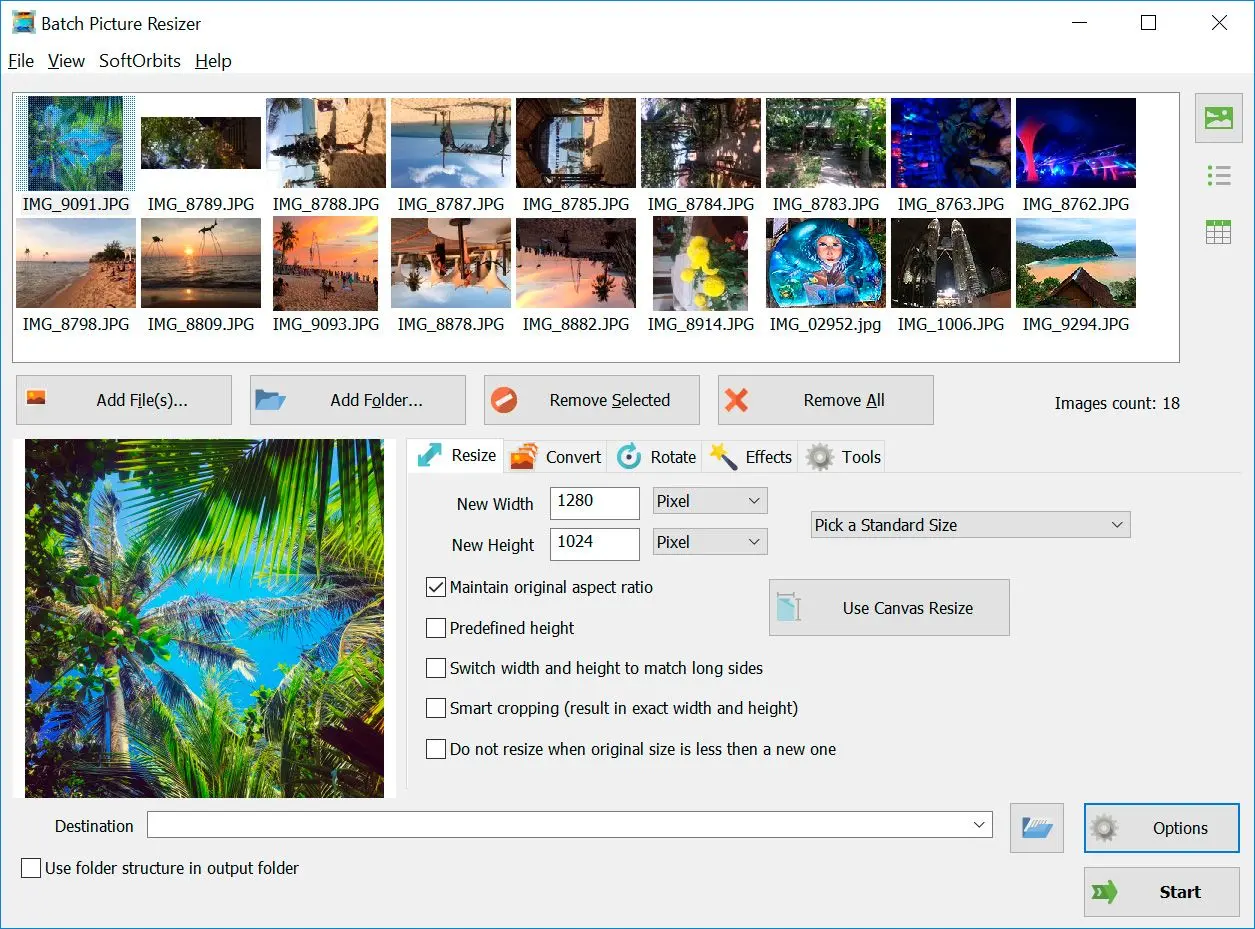
If you already own Photoshop, the Image Processor turns a whole source folder into JPG without recording an action. File, Scripts, Image Processor, point it at a folder, choose JPEG, run.
The path is File, then Scripts, then Image Processor. Pick the source folder, choose Save as JPEG, set a quality value, and let it run. One catch shows up a lot: people build an action with Save As and the batch keeps writing PSD files instead of JPG because the action re-records the original format. Image Processor avoids that trap, so use it rather than a hand-built Save As action.
Keep JPG Quality High When Exporting From PSD
JPG is lossy, so every save drops some data. Keep the quality slider around 85 to 90 for clean results, and convert from the original PSD once instead of re-saving a JPG over and over.
The quality value is the whole game. Too low and you get blocky skies and halos around text; too high and the file barely shrinks. Somewhere near 85 to 90 is the sweet spot for photos and most artwork. Convert straight from the PSD rather than exporting a JPG, editing it, and exporting again, since each re-save compounds the loss. If a file still looks rough after a browser conversion, that is often the online tool forcing a low quality to keep its servers fast. A desktop app lets you set the number yourself.
Resize PSD Exports While You Convert (Target File Size)
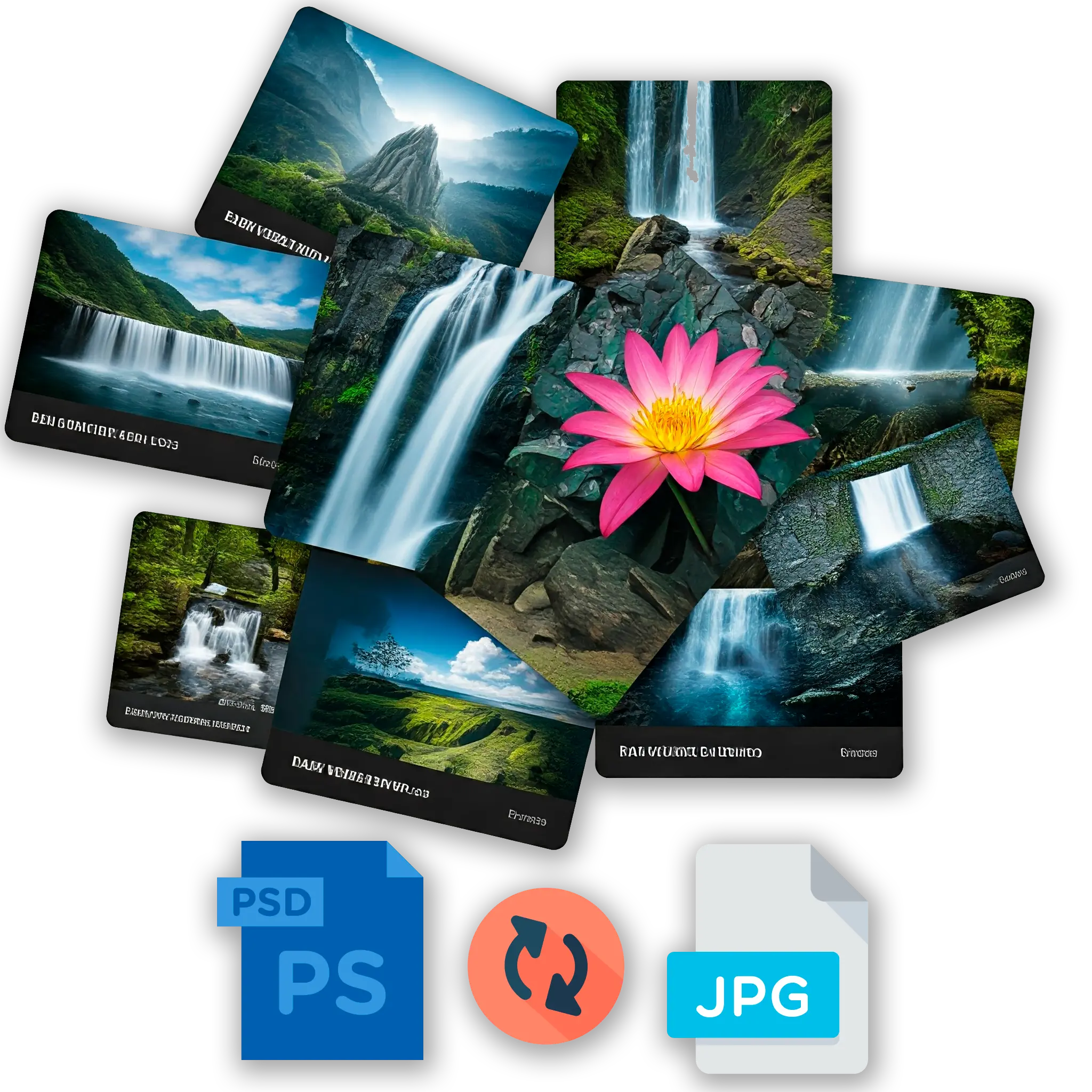
Many converters can resize during the same pass. Batch Picture Resizer can even hit a target file size in KB, which is handy when a portal or email caps how big an image can be.
Designers rarely need a 6000-pixel master sent to a web form. A good batch tool resizes by pixels, by percent, or by a target weight in KB (say, 200 KB), and it picks the JPEG quality automatically to land under that cap. That turns "convert and then shrink in a second app" into one step. Need just the resize part later? The same engine powers our JPG resizing guide, so the workflow stays consistent across formats.
Free PSD to JPG Converter Software for Windows
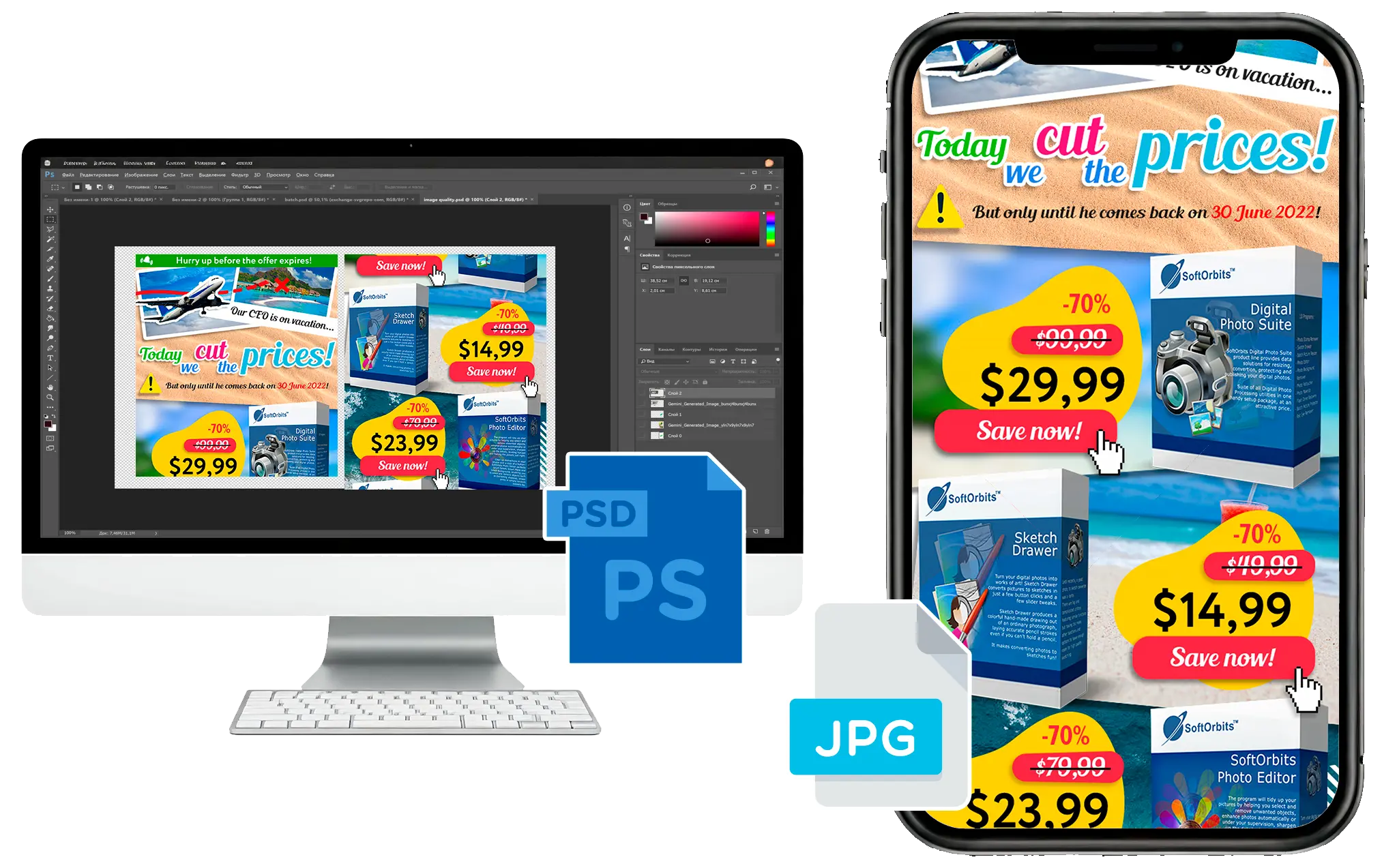
Batch Picture Resizer is a Windows desktop app that converts PSD to JPG offline, in batches, with quality and resize control. The trial is a free download. A license removes the run limit.
Honestly, for repeat work this is where dedicated PSD to JPG software pays off. Batch Picture Resizer opens PSD and PSB, flattens the layers, and writes out JPG. PNG and TIFF too if you need them. The same engine reads WebP and around thirty RAW formats. It runs on Windows 10 and 11, processes folders on every CPU core, and adds a right-click option in Explorer so you can convert without opening the app first. The same batch workflow covers other jobs too, like when you need to convert TIFF to PNG.
Pros:
Converts whole folders of PSD to JPG without an internet connection
Quality slider and target-size resize before export
Reads more than Photoshop files. PSD and PSB load, and so do RAW, WebP and TIFF
Cons:
Windows only, no Mac build
It is a converter and resizer, not a full layer editor


 Batch Picture Resizer