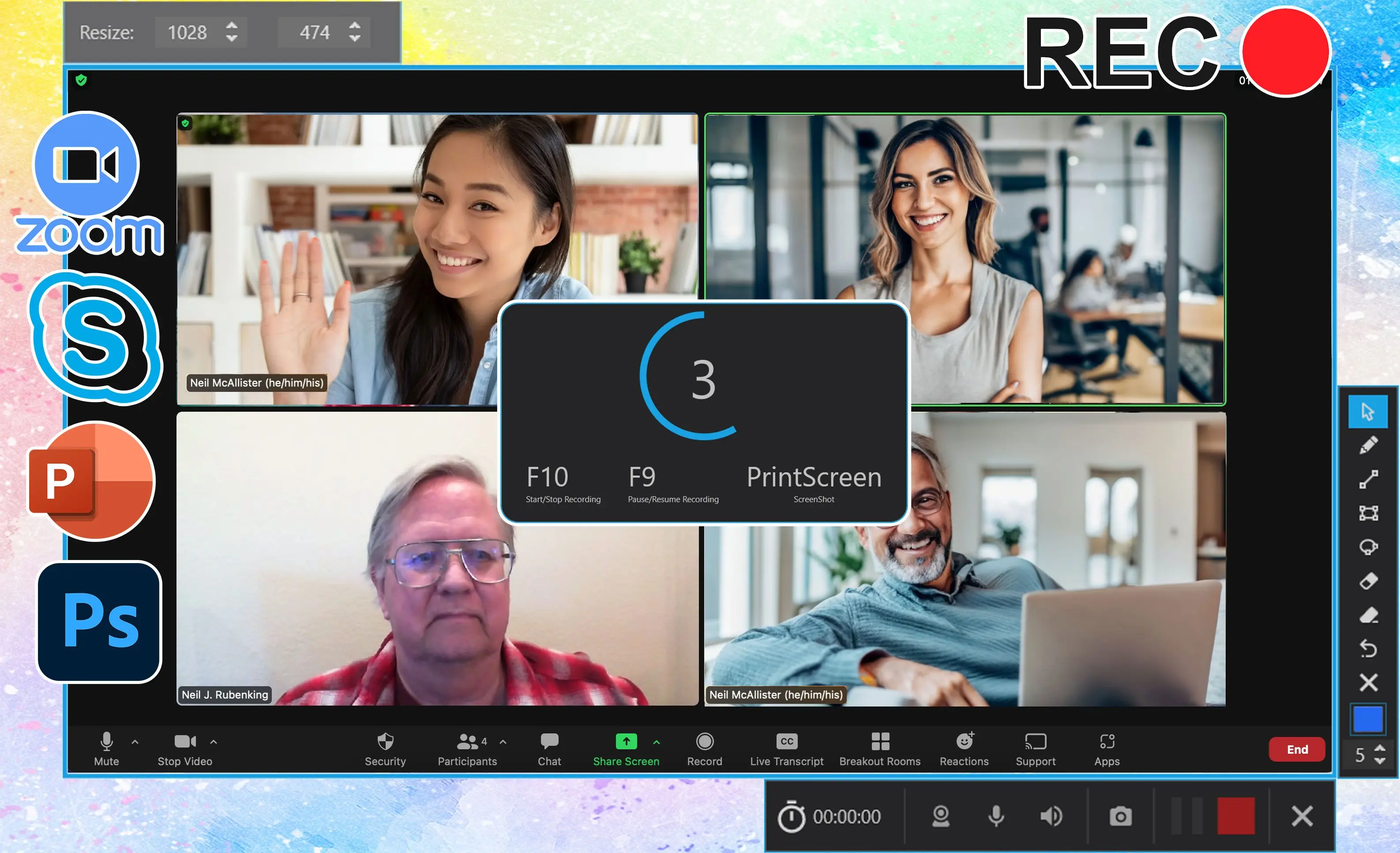
Asking the host to record is the most "official" route, but you depend on them remembering, on their license, and on them sharing a file that lands in their OneDrive, not yours.
The easiest option is to ask the organizer to start the native recording and send it to you afterward. It is worth a try for internal meetings. As a primary plan, though, it is the weakest of the three, because it hands every point of failure to someone else: the host needs recording rights, they have to remember to press Record at the start, and - as we cover below - the file ends up in their storage, not yours. If you need a dependable copy of a meeting you are attending, do not make the host your only plan.
Recording as a guest or external participant
Guests and users from another organization cannot start native Teams recording at all. A local screen recorder is the only option, and you carry the full duty to disclose it.
If you join from a different tenant or as an anonymous guest, Teams will not let you record, full stop. Microsoft Learn states it directly: external participants cannot record meetings except through a separate compliance-recording arrangement set up by an organization. There is no participant toggle that turns it on. Vendor guides like the Bandicam write-up on recording as a guest reach the same conclusion: a screen recorder on your own machine is the workaround. Because no in-meeting banner appears, the responsibility to tell the room sits entirely with you.
Where Teams recordings are stored (and why you may never see them)
Native recordings land in the organizer's OneDrive for private meetings, or in the channel's SharePoint for channel meetings. The organizer owns the file, and guests see it only if someone shares it.
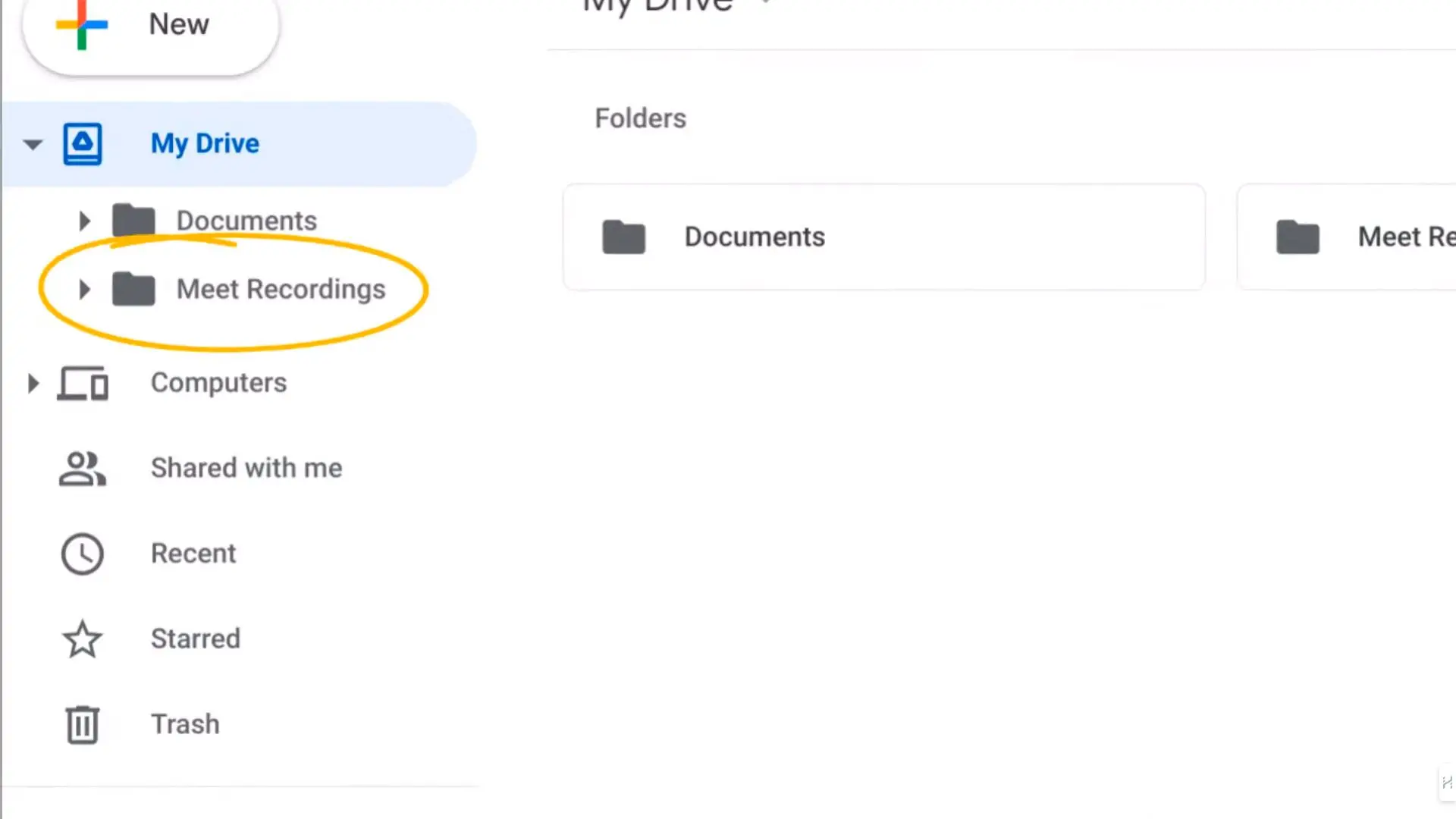
Even when a meeting is recorded the official way, the file is not yours. Microsoft's Support article on recording a meeting confirms the recording is saved to the organizer's OneDrive for private meetings, the organizer automatically owns it, and external attendees can view it only if someone shares it with them. For a participant who needs the content for notes or a record of decisions, that is a real gap - the kind you feel after a 40-minute vendor call when the one figure you needed sits in someone else's OneDrive, behind their sharing settings. Recording locally puts the MP4 in a folder you control from the start, with no waiting on anyone else. The same export logic applies later if you convert MKV to MP4 for editing.
Pitfalls when recording a teams meeting as a participant
Most failed participant recordings come down to two things: trusting the host to record, and capturing mic-only audio. Starting late or skipping consent does the rest.
These are the mistakes people report most often in Microsoft's Q&A forums and Windows help threads. Each one is avoidable with a minute of setup.
✔️ Assuming the host already recorded and will share it.
In this Microsoft Q&A thread, attendees describe waiting for a link that never arrives because the file sits in the organizer's OneDrive. Record your own copy instead of depending on someone else's memory.
✔️ Recording with the microphone only.
Remote voices play through your speakers, so a mic-only capture keeps your side of the call and loses everyone else. Turn on system audio and test a 30-second clip first.
✔️ Believing any participant can record by default.
One admin in a Microsoft Q&A discussion found the opposite problem - that the default depends on roles and policy. As an attendee you may find the button greyed out with no warning, so set up a recorder in advance.
✔️ Starting the recorder after the meeting began.
People in the greyed-out Record button thread often realize too late that recording is blocked. Arm your recorder and hit record before you join, not five minutes in.
✔️ Saving to a folder you do not control.
A temp folder or a synced drive that purges old files can lose your capture. Pick a known local folder before you start, and confirm the MP4 landed there when you stop.
 SoftOrbits Screen Recorder for Windows 11