
The quick path to a working .ico:

  1. 1️⃣ Download SoftOrbits Icon Maker and run the installer.
  2. 2️⃣ Add your PNG files, then pick ICO and the sizes you need.
  3. 3️⃣ Save one multi-size .ico, transparency and all.
SoftOrbits Icon Maker Screenshot.
Eugene - CEO at SoftOrbits, Candidate of Technical Sciences, has more than 16 years of expertise in software development, photo and multimedia applications, enhancing and transforming digital images and videos.
📅 Last updated on:  2026-06-09

A PNG to ICO converter takes your flat image and packs it into the icon container Windows actually reads. Renaming the file does not work. Paint cannot save .ico at all, so you need a real tool. SoftOrbits Icon Maker is a desktop program built for exactly that. It bundles every size from 16 x 16 up to 256 x 256 into one file and holds onto your transparency, and it converts a whole folder in one pass. This guide covers the download, the conversion, the sizes Windows expects, and the mistakes that leave icons blurry.

What you will learn
Apply in Convert PNG to ICO on Windows Saves A multi-size .ico for shortcuts, apps, or faviconsEasy

Convert PNG to ICO with Icon Maker

Download and install Icon Maker

Grab the installer from the Icon Maker page and run it. The setup is quick and runs on Windows 7 through 11.

 Download and install SoftOrbits Icon Maker..

Launch Icon Maker

Open the program after installation.

 Launch SoftOrbits Icon Maker..

Add your PNG files

Click Add Image (or Create Icon From Image) and select one or more PNG files. Drag-and-drop works too.

 Import your PNG image..

Choose ICO as the output format

In the Output Format section, pick ICO. For icon libraries, ICL is also there.

 Choose ICO output format..

Set the icon sizes

Use the Icon Size dialog to pick dimensions, or click the Windows button to generate the full standard set at once.

 Customize the icon sizes..

Convert the image

Click the conversion button. If the source PNG has a transparent background, Icon Maker carries it into the ICO automatically.

 Convert your PNG to ICO..

Save the ICO file

Save the new .ico where you need it. It is ready to drop onto a desktop shortcut, and the same file works as an application icon or a website favicon.

 Save your ICO file..

SoftOrbits Icon Maker SoftOrbits Icon Maker

SoftOrbits Icon Maker Software helps you create icons from PNG images and other graphics for Windows, Android, and iOS.

Why Windows Needs ICO, Not a Renamed PNG

TL;DR

Windows reads only the .ico container for shortcuts, folders, and app icons. A PNG is one fixed-size image; an ICO holds several sizes and color depths in one file, so the system can pick the right one.

People try the obvious thing first. They rename logo.png to logo.ico, point a shortcut at it, and Windows refuses. On Microsoft's own forum a user asked how to convert because "vista only allows ico files to be used as icons", and a later reply shut down the popular myth that Paint can help. As that reply put it, "I do not believe that MS Paint can convert a PNG file to an ICO file...there's no way to save the file as an ICO file" (answers.microsoft.com).

 PNG file converted into a multi-size ICO icon on Windows..

The reason is structural. A PNG stores a single raster image at one resolution. An ICO is a container. One file can hold 16 x 16, 32 x 32, 48 x 48, and 256 x 256 versions of the same icon, each at its own color depth. Windows then pulls whichever size fits the spot, a tiny tray glyph or a large Explorer tile. As one Quora thread on the format choice notes, a lone PNG cannot adapt across those views, which is exactly why a converter exists. You can also reverse the trip later with an ICO to PNG converter if you need the flat image back.

Icon Sizes Windows 10 and 11 Expect

TL;DR

Bundle 16 x 16, 32 x 32, 48 x 48 and 256 x 256 in one ICO. Windows then has a clean source for the tray, the desktop and the large high-DPI view, no stretching.

A single size is the most common reason an icon looks wrong. Windows uses different sizes in different places, and if the only one in your file is, say, 48 x 48, the system stretches or shrinks it everywhere else. Microsoft's icon design guidance on Microsoft Learn lists the sizes a desktop icon should ship.

The standard Windows size set

  • 16 x 16 for the system tray, small list views, and the title bar
  • 32 x 32 for the default desktop icon
  • 48 x 48 for medium icons in File Explorer
  • 256 x 256 for large icons and high-DPI displays (stored PNG-compressed inside the ICO)
In Icon Maker the Windows preset generates all four in one click, so you do not have to add them by hand. If your icon is only ever a favicon, 16 x 16 and 32 x 32 are enough; for a desktop app, include all four.
SizeWhere Windows uses it
16 x 16System tray, small list view
32 x 32Default desktop shortcut
48 x 48Medium icons in Explorer
256 x 256Large icon view, high-DPI

Keep PNG Transparency in the ICO

TL;DR

If the source PNG has an alpha channel, a proper converter carries it straight through. The trick is to start with real transparency, not a white box you plan to erase later.

Most icons need transparent background so they sit cleanly on any wallpaper or toolbar color. Icon Maker preserves the alpha channel from the source PNG during conversion, with no extra step. The catch is on the input side: the transparency has to exist in the PNG before you start. Adding it afterward means manual masking, which is slow and rarely clean.

Watch the color depth here as well. Some older tools quietly flatten a smooth alpha edge into a hard 1-bit cutout, so anti-aliased corners turn jagged. Save your ICO at 32-bit color (more on that below) and the soft edges survive. If you only have a JPG with a baked-in background, convert and clean it first, or follow our JPG to ICO converter walkthrough.

Why Your Icon Looks Blurry, and How to Avoid It

TL;DR

Blurry icons almost always come from one of two things: a source PNG that is too small, or a single-size ICO that Windows has to upscale. Start large and bundle multiple sizes.

This is the complaint that fills support threads. On a Microsoft developer forum, someone reported that "the app icon is blurred when the app was installed on my test PC" after using a converter that wrote a single-size file. The fix is two-part.
First, start with a large source. An icon bundles several resolutions, so if the source PNG is 32 x 32, the converter has to invent pixels for the 256 x 256 layer, and that invented detail looks soft. Begin with at least 512 x 512 (or 1024 x 1024 for Apple targets) and the converter downsamples cleanly instead of guessing upward.

Second, include multiple sizes. A complex logo that reads fine at 256 x 256 can turn into a smudge at 16 x 16. After converting, open the .ico and check the smallest layer with your own eyes. If it is unreadable, simplify artwork or create a plainer 16 x 16 version. Honestly, that two-minute look at the tiny layer is the step most people skip and then regret.

Color Depth and Why You Want 32-bit

TL;DR

Use 32-bit color (RGB plus an 8-bit alpha) for anything modern. Older 8-bit or 4-bit depths exist only for legacy compatibility and will wreck a transparent edge.

Color depth decides how many colors and how much transparency each layer can hold. Windows 10 and 11 expect 32-bit, which means eight bits per channel plus an 8-bit alpha channel for smooth transparency. The legacy 8-bit (256-color) and 4-bit (16-color) depths show up only when you target very old systems, and they handle transparency as a single on-or-off bit, which is why a 32-bit logo can suddenly grow a black or magenta box behind it after a careless export. Icon Maker lets you set the color depth for the output, so you can keep modern 32-bit icons and still produce a legacy 8-bit version when some ancient target needs it.

Make a favicon.ico from a PNG

TL;DR

A favicon.ico with 16 x 16 and 32 x 32 layers covers nearly every browser. ICO is still the most compatible favicon format, even though modern browsers also accept PNG.

Browsers show the little icon in the tab and the bookmark bar, and they still read .ico for it. The favicon.io guide on favicon sizes recommends bundling at least 16 x 16 and 32 x 32, with 48 x 48 as a useful extra for Windows site shortcuts. To build one, convert your logo PNG to ICO with just those small sizes selected, name the output favicon.ico, and drop it in your site root. Browsers find it automatically, though adding a link tag in the page head never hurts. Start from a clean square PNG; a logo with lots of fine text rarely survives 16 x 16.

Batch Convert a Folder of PNG Files

TL;DR

Point Icon Maker at a folder, set the sizes once, and it writes one ICO per source PNG. This is the time-saver when you have a whole icon set rather than a single image.

Converting icons one at a time is fine for a single logo and miserable for a whole toolbar set or a themed icon pack. Icon Maker takes an entire folder of PNGs and turns each into its own ICO in a single run, with the same size set across the batch so the output stays consistent.

To batch convert PNG to ICO:

  • Click Add Folder and select the directory of PNG sources
  • Set the output sizes and format (ICO) once for the whole batch
  • Pick a destination folder
  • Click Start, and the program writes one ICO per source PNG

That is the workflow when you are building a UI kit or refreshing every icon in an application at once, without opening each file by hand. If the same project also needs different pixel dimensions for other assets, our image size converter guide handles that side.

Where ICO Files Are Used, Including ICL Libraries

TL;DR

ICO covers Windows shortcuts, app and folder icons, and browser favicons. When you manage many related icons, an ICL icon library keeps them in one file.

ICO turns up in more places than most people expect. Windows uses it for desktop shortcuts, folder icons and Control Panel entries, picking the closest matching size from the bundle. When you compile a Windows application, the build embeds an ICO as the program icon. That is what shows in the taskbar and the Alt+Tab switcher. Browsers use it for favicons, as covered above.

ICL icon libraries:

Developers and UI designers sometimes collect related icons into an ICL file instead of scattering loose .ico files. Icon Maker creates and edits these libraries directly. Pick ICL as the output format, add the PNGs that belong in the set, and it packages them into one library. That keeps a themed icon pack together and lets you ship the whole set at once.

Desktop Converter vs Online Tool

TL;DR

Online converters are fine for a one-off public image. For anything proprietary, a desktop converter keeps the file on your PC and gives you direct control over sizes and color depth.

There is no shame in a quick online conversion for a throwaway image. But two things push people toward a desktop tool. The first is privacy, since you are uploading the file to someone else's server. On a Microsoft forum thread about converting on a PC for free, one commenter flagged the obvious worry about third-party sites, wondering "who knows what kind of data harvesting or malware might be lurking" (techcommunity.microsoft.com). For a client logo or an unreleased product mark, that alone settles it.

The second is control. Online tools often output a single size or a fixed depth; a desktop converter lets you choose exactly which sizes go in, set the color depth, and run a batch offline. With SoftOrbits Icon Maker the whole job stays on your machine.

SoftOrbits Icon Maker SoftOrbits Icon Maker

SoftOrbits Icon Maker Software helps you create icons from PNG images and other graphics for Windows, Android, and iOS.

Pitfalls When Converting PNG to ICO

TL;DR

Most ruined icons come from a few avoidable mistakes. The usual culprits: wrong tool, tiny source, single size. Flattened transparency is the fourth. A quick check before you ship saves a re-do.

✔️ Expecting Paint or a rename to work.

Windows accepts only .ico for icons, and Paint cannot save that format, as the Microsoft community thread above spells out. The reason people give on the Quora format thread is the same: a single PNG cannot do what a multi-size ICO does. Use a dedicated converter and you skip the whole dead end.

✔️ Starting from a tiny PNG.

A 32 x 32 source cannot fill a 256 x 256 layer without invented, blurry pixels. Microsoft's icon design guidance assumes a large, clean source, so begin with 512 x 512 or larger and every size downsamples from real detail.

✔️ Saving a single-size ICO.

One layer forces Windows to scale it everywhere, which is the classic "blurry after install" report on the Microsoft developer forum. Bundle the full size set instead.

✔️ Letting transparency flatten.

A converter that drops to 1-bit alpha turns soft edges into a hard cutout. Keep 32-bit color and confirm the alpha survived.

✔️ Never checking the 16 x 16.

A logo that looks great large can be unreadable tiny. Open the smallest layer before you call it done.

What SoftOrbits Icon Maker Adds

TL;DR

Beyond the basic convert, it is full PNG to ICO software: it reads several raster formats, exports ICO, ICL, and cursors, extracts icons from EXE and DLL files, and edits each size in a built-in pixel editor.

When the icon matters, the extras help. SoftOrbits Icon Maker reads PNG, JPG, and other common raster formats as input, exports ICO and ICL plus cursor (.cur / .ani) formats, and can even extract icons from existing EXE, DLL, and ICL files. A built-in pixel editor lets you crop, recolor, and touch up a size before saving.

Pros:

Bundles 16 x 16 through 256 x 256 in one ICO, with the Windows preset

Keeps PNG alpha transparency and lets you set the icon color depth

Batch-converts a whole folder offline, no upload

Cons:

Windows only; no macOS build

The free trial adds a watermark until you license it

FAQ

SoftOrbits Icon Maker SoftOrbits Icon Maker
Download a PNG to ICO converter for Windows. Icon Maker bundles 16-256 px sizes in one .ico, keeps transparency, and batch-converts a folder offline.
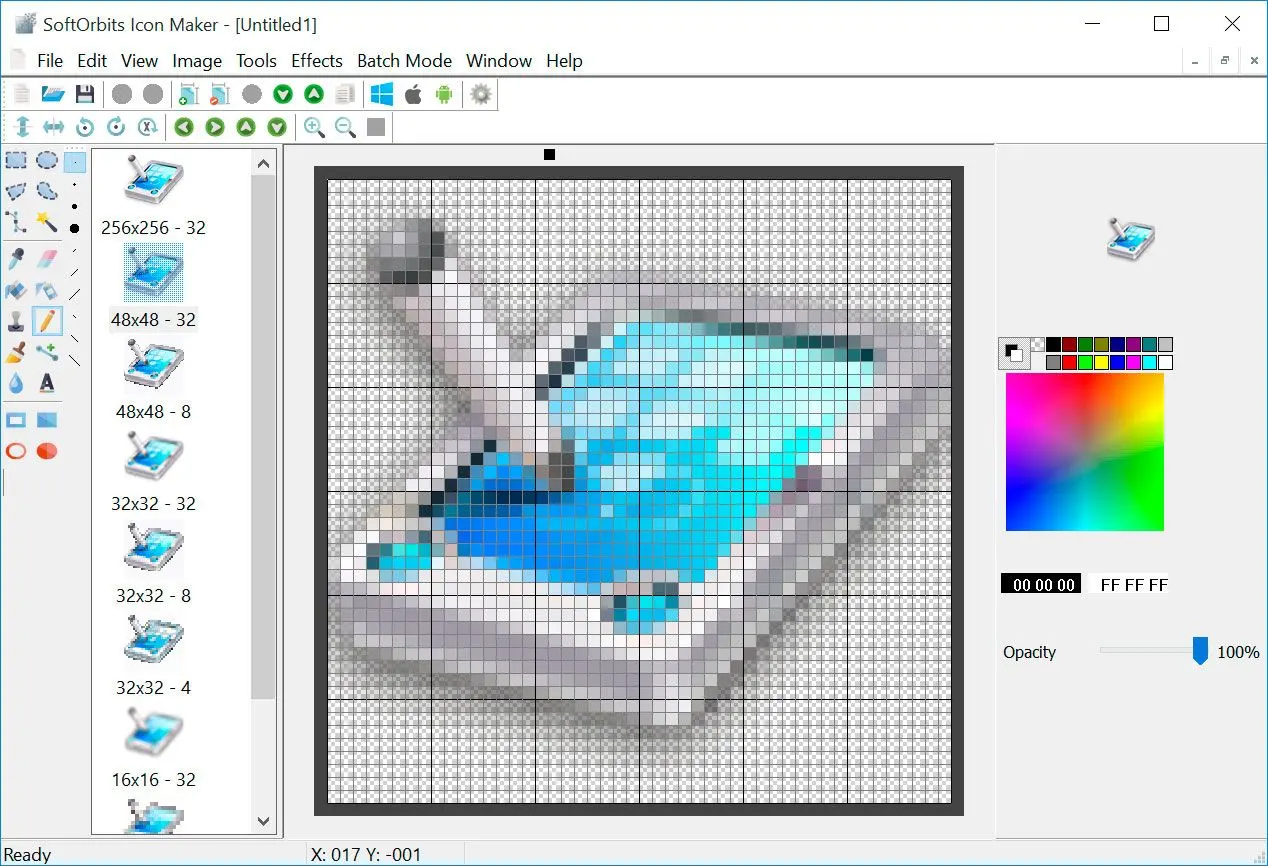
SoftOrbits Icon Maker Screenshot.


🙋Frequently Asked Questions

Icon Maker has a free trial that covers the full conversion workflow on Windows. The trial adds a watermark; a license removes it and lifts the limit on batch conversion.

No. Paint has no ICO save option, so a renamed .png stays a PNG. You need a dedicated converter to write a real icon container.

Yes. A single .ico can bundle 16 x 16, 32 x 32, 48 x 48, and 256 x 256, and Icon Maker generates all of them from one source PNG in a single pass.

Yes. If the source PNG has an alpha channel, Icon Maker carries it into the ICO at 32-bit color, with no extra setup.

Start at 512 x 512 or larger. A bigger source downsamples cleanly to every layer; a tiny source forces upscaling and looks blurry.

Convert your logo PNG to ICO with 16 x 16 and 32 x 32 selected, name the file favicon.ico, and put it in your site root.

Yes. Icon Maker runs on Windows 7, 8, 10, and 11, in both 32-bit and 64-bit editions.

Yes. Pick ICL instead of ICO as the output, add every PNG that belongs in the set, and Icon Maker packs them into one library file.